

Is your WordPress website running slower than you’d like? A speedy website is crucial for keeping visitors engaged and happy. Fortunately, there’s a simple and effective way to boost your website’s speed: updating your server’s PHP to the latest version. In this article, we’ll walk you through the process and explain why it’s so important.
Understanding PHP and Its Role in WordPress
First things first, what is PHP? PHP, which stands for Hypertext Preprocessor, is a scripting language widely used in web development. It powers many popular platforms, including WordPress. Essentially, PHP acts as the backbone of your WordPress site, running scripts and generating dynamic content.
When your website is slow, outdated PHP could be a culprit. Newer versions of PHP are faster, more secure, and more efficient. So, keeping PHP up to date is essential for maintaining a well-functioning WordPress site.
Benefits of Updating PHP to the Latest Version
- Improved Speed and Performance: New PHP versions come with performance enhancements. Your site will run faster, which can lead to better user experience and higher search engine rankings.
- Enhanced Security: Each PHP update includes security fixes. By using the latest version, you protect your site from vulnerabilities.
- Better Compatibility: Themes and plugins are often optimized for the latest PHP versions. Updating ensures that everything works smoothly together.
How to Check Your Current PHP Version
Before updating, it’s important to know which PHP version your site is currently using. Here’s how you can check:
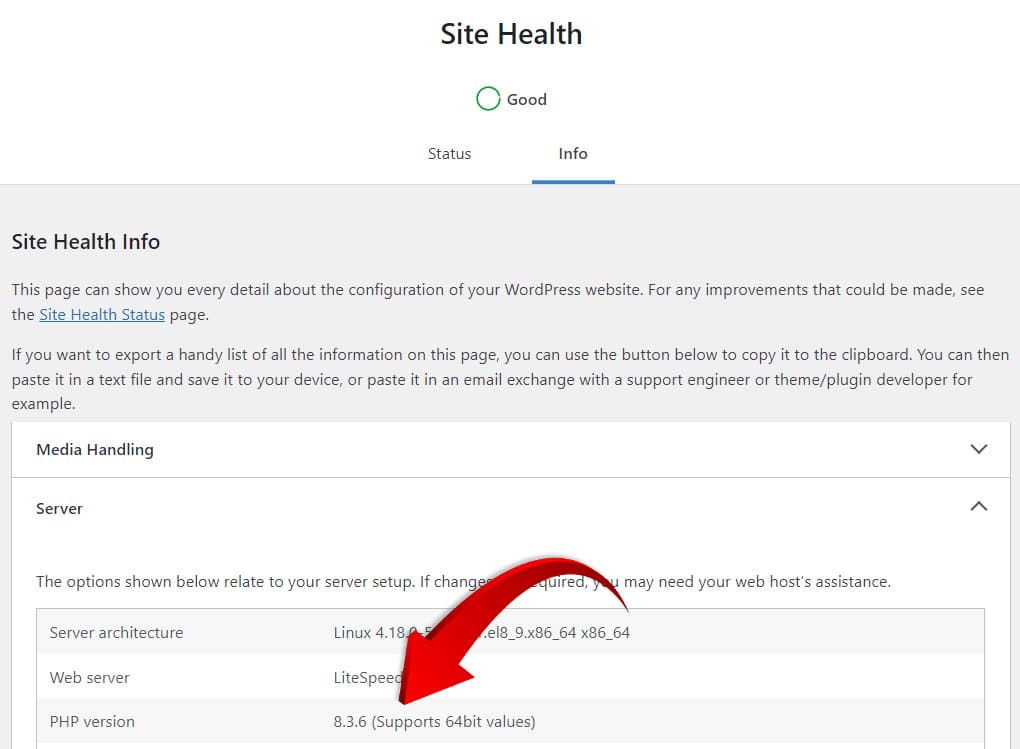
- From the WordPress Dashboard:
- Go to
Tools>Site Health. - Click on the
Infotab. - Scroll down to the
Serversection. You’ll see the PHP version listed there.
- Go to
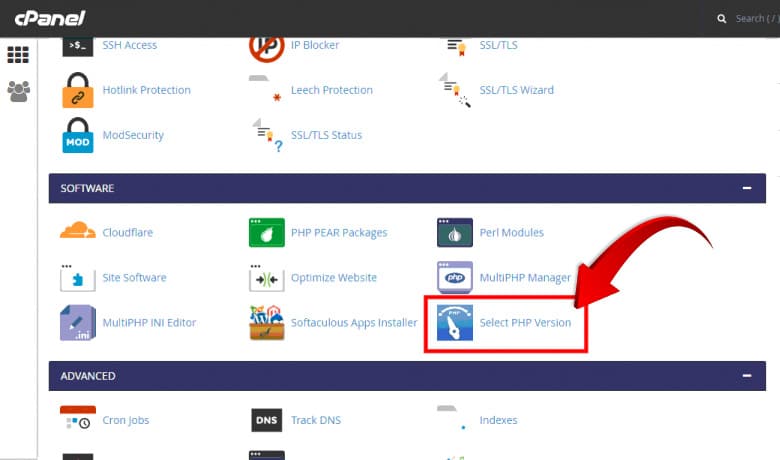
- From cPanel:
- Log in to your hosting account’s cPanel.
- Look for the
Select PHP VersionorPHP Configurationoption. - Your current PHP version will be displayed.
Updating PHP Version
Before you proceed with the update, make sure to backup your website. This is a crucial step to prevent data loss in case anything goes wrong.
- Backup Your Website:
- Use a plugin like UpdraftPlus or BackupBuddy to create a backup of your site.
- Save the backup files to a secure location.
- Update PHP via Hosting Control Panel:
- Log in to your hosting account’s control panel.
- Find the
PHP ConfigurationorSelect PHP Versionoption. - Select the latest stable PHP version (as of now, it’s PHP 8.0 or 8.1).
- Apply the changes.
- What to Do After Updating PHP:
- Check your website thoroughly to ensure everything is working correctly.
- If you encounter any issues, disable and re-enable your plugins one by one to identify any conflicts.
If you find it difficult, just ask your hosting provider’s customer service and they will do the rest.
Common Issues and Troubleshooting
Sometimes, updating PHP can cause compatibility issues with older themes or plugins. Here are some common problems and how to fix them:
- White Screen of Death: This often happens due to incompatible plugins or themes. Try disabling all plugins and reactivating them one by one to find the culprit.
- Error Messages: These may indicate outdated code in your theme or plugins. Check for updates or contact the developer for support.
If you’re still having trouble, consider reaching out to your hosting provider’s support team. They can offer guidance and help resolve any issues.
Conclusion
Updating your PHP version is a quick and easy way to speed up your WordPress website. Not only will it improve performance, but it will also enhance security and ensure compatibility with themes and plugins. So, don’t wait – update your PHP today and enjoy a faster, more secure website!
Feel free to ask any questions or share your experience in the comments below. Happy updating!